
Adding New Prox Tags to Your Existing System
4 min. read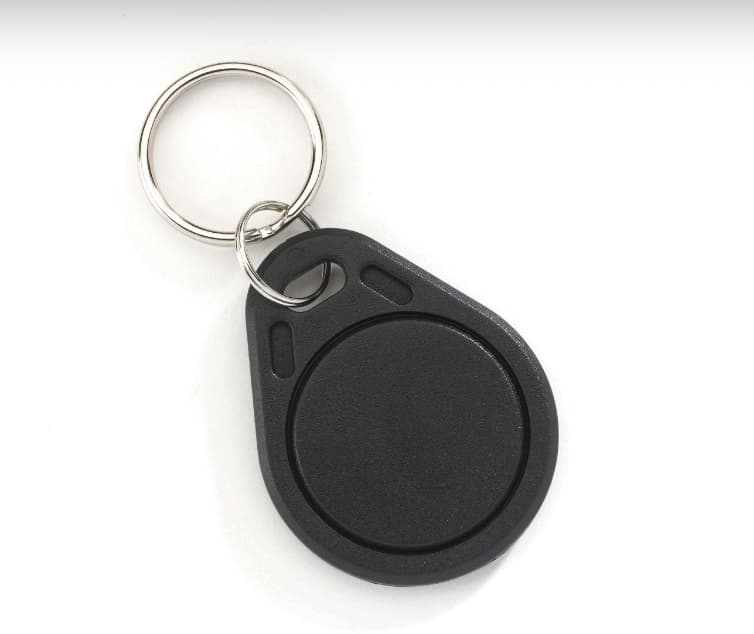
When ordering extra prox tags for an existing system, you'll need to program them yourself. Since each new system ships with 10 pre-programmed tags, addit
When ordering extra prox tags for an existing system, you'll need to program them yourself. Since each new system ships with 10 pre-programmed tags, additional tags typically start numbering at #11.
Naming Guidelines
Follow the format "Tag 11," "Tag 12," and so forth. If you make a mistake while typing, press the CLR key to backspace and erase. To insert a blank space, press the #1 key once.
System Capacity
The system supports a maximum of 20 tags and codes total. Most setups accommodate 18 prox tags.
Programming Steps
- Wake the keypad and press the right arrow to access Access Level 1
- Press OK, then navigate right until "Access Level: 3" appears
- Press OK and enter your 4-digit code, then OK
- Press right arrow until "Badges Access Codes" appears
- Press OK to view "Enter A Badge/Code"
- Press OK again — the display shows "Badge Or Code"
- Hold your new prox tag over the grey eye icon (left of keypad keys)
- Type the tag name (e.g., "Tag 11")
- Press OK and repeat for additional tags
- Once finished, press and hold ESC/NO until the display returns to the time and date screen
For technical questions, contact Steve the Security Expert at RadiusVision.
ON THIS PAGE
Share this article: